Early Access Windows ZIP macOS DMG

Keep your crossing records straight.

Start with the crossings that need a follow-up. Keep entered tickets, agreements, contacts and field context in one local desktop project, then hand off the records your team needs.

One-time purchase · Windows 1.0.1 ZIP + Mac 1.0.0 universal DMG

2 downloadsWindows and macOS included
1 computerOne coordinator, one active computer
14 daysGood-faith refund period
24-second product demoActual app screens

From follow-up to the right crossing.

Review entered ticket and agreement records in Attention, then focus the crossing you need.

Choose play to start. Captions and a transcript are included.

Edited CrossCheck 1.0.1 screens with synthetic records and generated narration. Coordinator records, not live utility approvals.

Read the transcript

Start with what needs a follow-up. CrossCheck groups entered ticket and agreement records in Attention. Select an item to focus the crossing, then inspect the records you want to hand off. These are coordinator records, not live utility approvals.

Download transcript

One project. One working record.

CrossCheck brings crossing records, recorded change history and project files into one workspace.

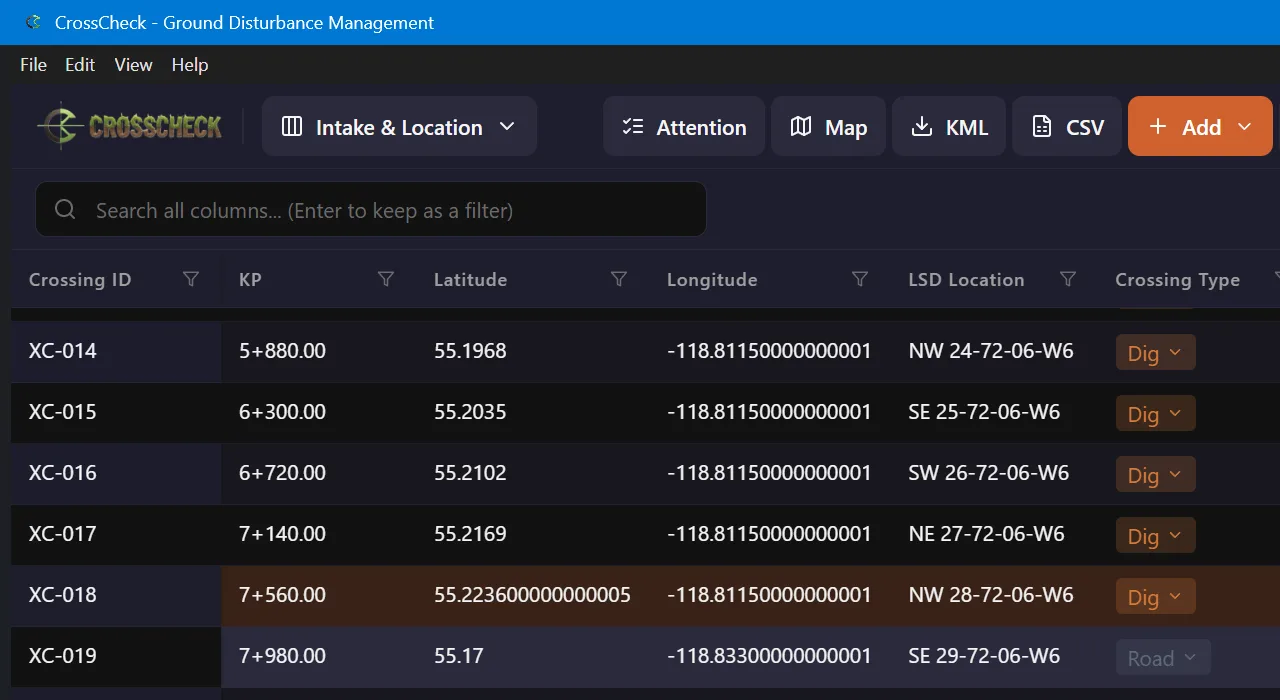
CrossCheck table with the selected crossing row brought into view and highlighted.

Find the crossing you are working on.

Use search, filters, saved views, custom text columns and editable dropdowns to make the table match the job.

  • Review Attention items and change history.
  • Keep journal context with the crossing record.
  • Export filtered records to CSV or KML.
  • Create and restore validated local backups.

From intake to handoff.

The sequence stays familiar: bring in the crossing information, maintain the record, review unfinished work and create the files needed for handoff.

Review a revision.
Check the crossing context.

This 18-second synthetic example shows an owner update, the proposed change and the crossing context.

  1. Receive the revision. XC-018 has a proposed owner update.
  2. Review the changed owner. Prairie Link Utilities becomes Prairie Link Field Services.
  3. Inspect the crossing context. Review the saved record and its recorded history before the next handoff.

A local, single-user record workflow. Field verification and safety decisions stay with the responsible professional.

Choose play to load the video. Sound starts only when you choose it.

Actual CrossCheck 1.0.1 captures with synthetic data.

Read the example and transcript

What the captures show: one owner-only revision for synthetic record XC-018. The import review shows the proposed change. After applying it, history shows the owner update and the retained note.

Revision received. Contact confirmation is still pending. Keep this item open for the next coordinator.

Generated narration: The owner changes. The note still matters. In this CrossCheck example, the owner is updated and the field note stays with the record. See what changed. Keep the context.

Captions use an automated transcript checked against the source script. This example demonstrates this particular revision, not every possible update.

On a small screen, use fullscreen or rotate your phone to read the captured application text.
  1. 01

    Bring in the project

    Create a project or import KML or KMZ, then review the detected fields before applying changes.

  2. 02

    Maintain the record

    Update tickets, contacts, agreements, notes and field status in the same local project.

  3. 03

    Review what needs attention

    Use search, filters, Attention and history to return to missing, expiring or changed information.

  4. 04

    Export and back up

    Create CSV or KML handoff files and keep a validated backup outside the working project folder.

Real screens from the release.

These captures show the working application, not a marketing mockup.

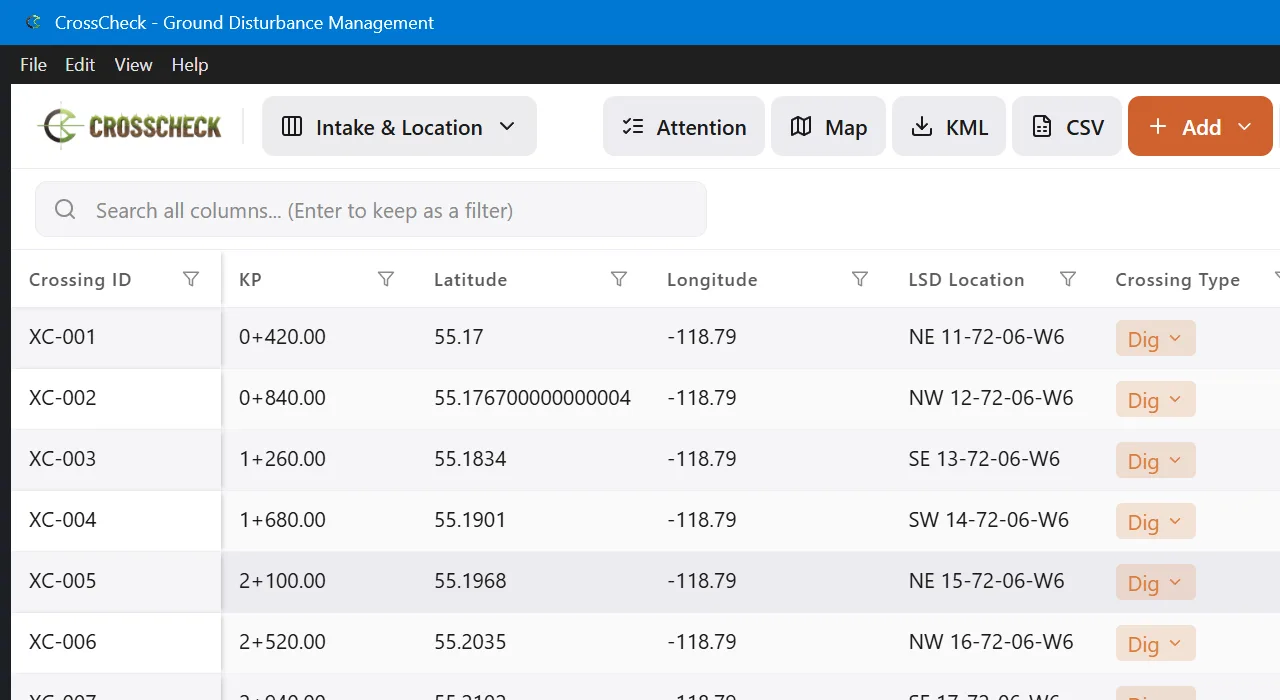
CrossCheck project overview in light mode.
Light and dark themes

Use the same project in either display theme.

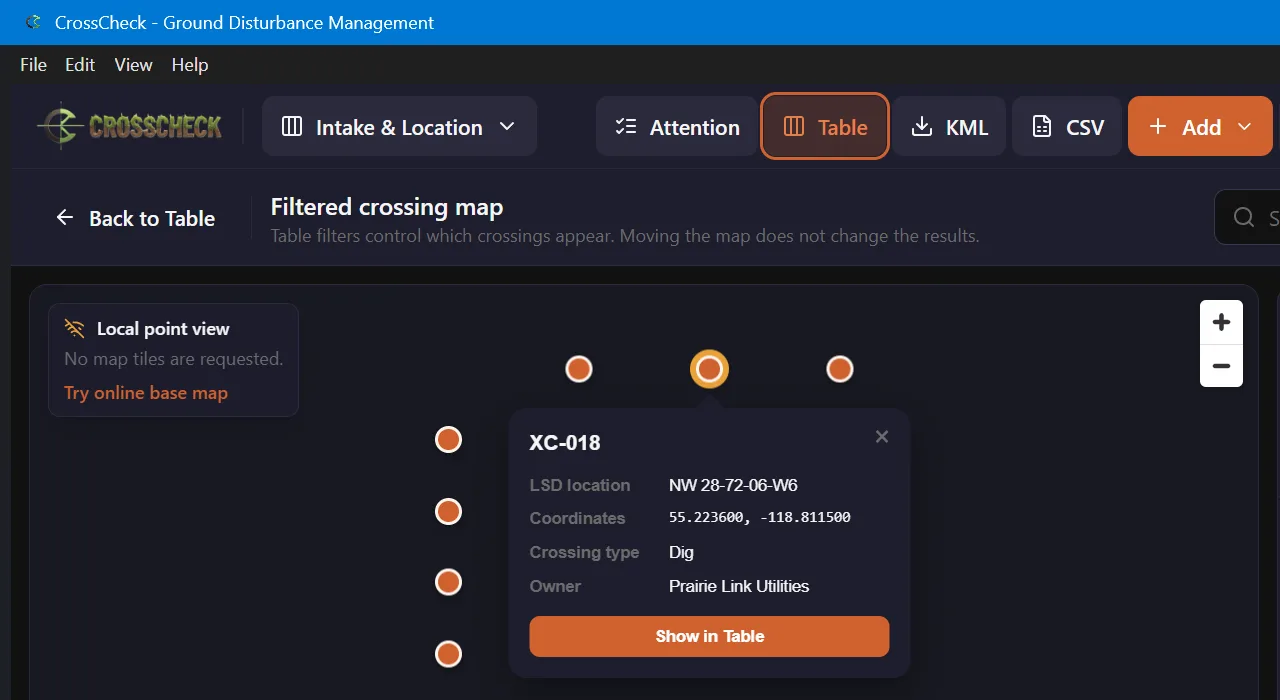
CrossCheck map with one crossing selected and its ID, legal location, coordinates, type and owner visible.
Map and table stay connected

Select a point to review its details, then return to the matching table row.

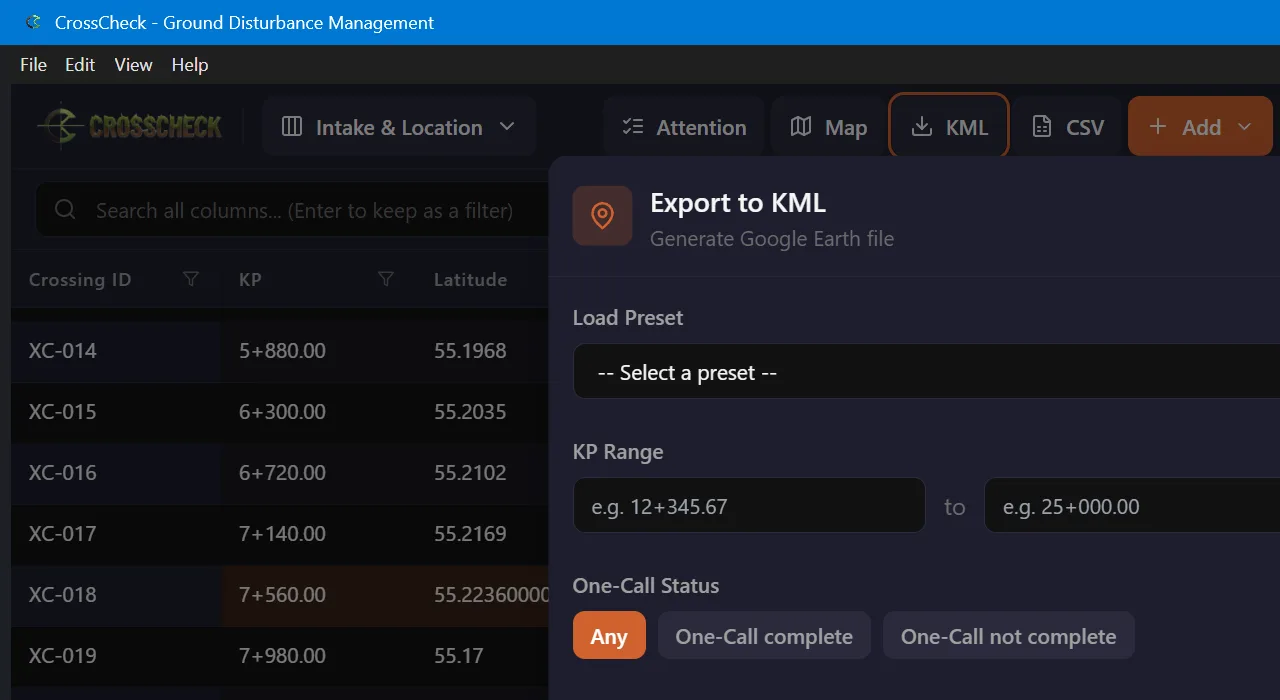
CrossCheck KML export window with preset, chainage range, One Call status and crossing type filters.
Controlled KML export

Choose which crossings belong in a KML file for use in Google Earth.

Built for the coordinator’s record.

Keep track of entered information. Field verification, excavation approval and safety decisions remain with the responsible professionals.

CrossCheck helps you

  • Maintain crossing records, tickets, contacts and field status.
  • Review KML or KMZ changes before applying them.
  • Keep change history, exports and validated local backups.

CrossCheck does not

  • Locate utilities or connect directly to One Call.
  • Certify compliance, approve excavation or make safety decisions.
  • Provide cloud collaboration, multi-user editing or project-data encryption.

Windows and macOS are included.

The current Gumroad product includes Windows 1.0.1 as a ZIP and Mac 1.0.0 as a universal DMG. Independent validation of the sold Mac DMG on Intel and Apple silicon is not yet documented. See the installation guide for the current verification limits. The installation guide explains the different first-run steps for each version.

Windows

Unsigned Windows installer

Windows may show Microsoft Defender SmartScreen. If it appears, select More info, verify the file came from the official Gumroad download and matches the published SHA-256 checksum, then select Run anyway.

macOS

Ad-hoc signed, not notarized

macOS may say Apple cannot check CrossCheck for malicious software. Control-click or right-click CrossCheck, choose Open, then confirm Open. If required, use System Settings → Privacy & Security → Open Anyway.

CrossCheck is not certified by Microsoft or Apple. Do not disable operating-system security controls. Continue past a first-launch warning only when the file came from the official CrossCheck Gumroad download and its checksum matches the release information. Read the full installation guide.

Early Access. One-time purchase.

CrossCheck is available for one coordinator on one active computer at a time. Use either the included Windows or macOS download and keep unlimited local projects.

Before you buy

The Windows installer is unsigned. The macOS app is ad-hoc signed and not Apple-notarized. First launch may require the operating-system steps described above and in the installation guide.

14-day good-faith refund period

Request a refund through Gumroad or email admin@spiritbox.ca within 14 days of purchase. The full conditions are in the terms of sale.

Early Access
CrossCheck
$399USD
One-time purchase · Windows and Mac downloads included
  • Windows1.0.1 ZIP
  • Mac1.0.0 universal DMG
  • LicenseOne coordinator
  • Active computersOne at a time
  • ProjectsUnlimited local projects
  • Updates0.x and 1.x updates made available to purchasers
  • SupportBest effort by email
Get CrossCheck Early Access

Price: $399 USD. Applicable taxes and currency conversion are handled at checkout.

Questions before buying.

Platform, storage, maps, installation and refund answers in one place.

What downloads are included?

The current Gumroad purchase includes Windows 1.0.1 as a ZIP and Mac 1.0.0 as a universal DMG. Independent validation of the sold Mac DMG on Intel and Apple silicon is not yet documented. See the installation guide for the current verification limits. CrossCheck is licensed to one coordinator on one active computer at a time.

Why might the operating system show a warning?

CrossCheck is an independent early-access release. The Windows installer is unsigned, and the macOS app is ad-hoc signed and not Apple-notarized. Follow the platform installation steps only for the official Gumroad download after checking the release checksum.

Where does project information live?

In project folders you choose on your computer. CrossCheck has no project-data cloud service and does not intentionally send project content to McNile Inc. CrossCheck does not encrypt project data, so use appropriate device security, access controls and backups.

Does the map require an internet base map?

No. CrossCheck first shows crossing points without loading street-map tiles. You can choose an optional online base map. The provider receives normal network information and the viewed map area, but not the fields in your crossing records.

Can CrossCheck replace a crossing spreadsheet?

CrossCheck is designed to become the working record for a crossing project. It adds search, filters, configurable fields, history, Attention, maps, KML and CSV exports, and validated backups. Review it against your process before moving live information.

What if CrossCheck is not right for the workflow?

Request a good-faith refund within 14 days of purchase through Gumroad or by emailing admin@spiritbox.ca. Refunds remain subject to the terms of sale and applicable law.